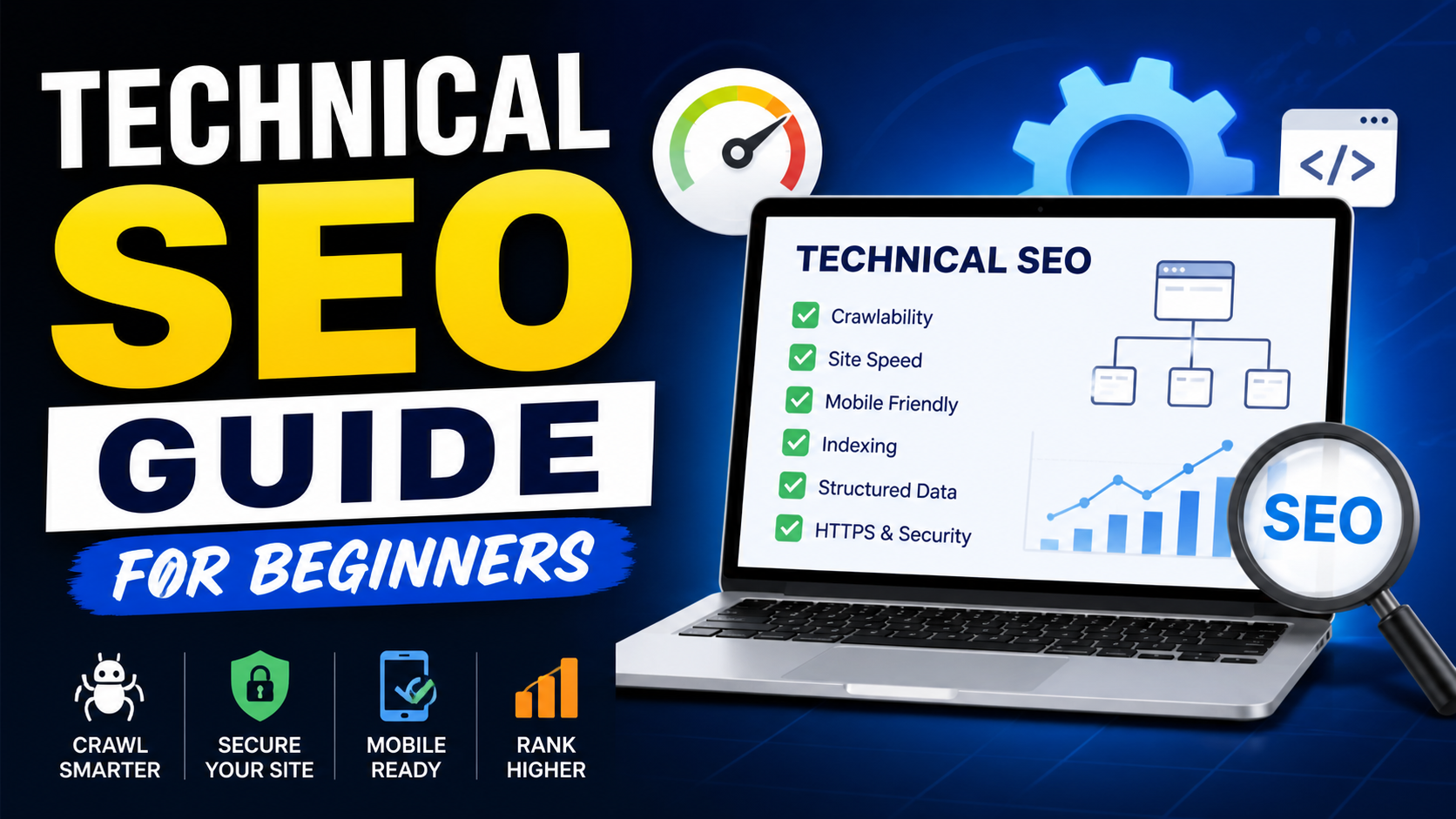
When most people hear “SEO,” they think of keywords and blog posts. And yes, content matters. But there is a whole layer of SEO that works underneath all of that, quietly deciding whether your website even gets a chance to rank. That layer is called technical SEO.
If you have ever written great content but still struggled to get traffic, technical SEO might be the reason. Search engines cannot rank pages they cannot find, read, or trust. This guide will walk you through every important technical SEO concept in plain language, without assuming you already know what a crawl budget is or why a 301 redirect matters.
Let’s start from the beginning.
What is Technical SEO?

Technical SEO refers to all the optimizations you make to your website that help search engines crawl, index, and understand it better. It has nothing to do with the words on your page. It is about the structure, speed, security, and overall health of your website from a technical standpoint.
Think of it this way. Your content is the message. Technical SEO is the road that delivers that message to Google. If the road has potholes, broken bridges, or dead ends, your message never arrives no matter how good it is.
Technical SEO covers things like:
- How fast your pages load
- Whether your site is secure (HTTPS)
- How your URLs are structured
- Whether search engine bots can access and read your pages
- How your website performs on mobile devices
- Whether you have duplicate content issues
None of this is as complicated as it sounds. Once you understand what each piece does, fixing it becomes much more straightforward.
Why Does Technical SEO Matter?
Here is a simple way to understand it.
Google uses automated bots (called crawlers or spiders) to visit websites, read their content, and decide how to rank them. If your website has technical issues, those bots struggle to do their job. And when they struggle, your rankings suffer.
A few real examples of how technical issues hurt websites:
- A page blocked in robots.txt will never rank, even if the content is outstanding.
- A slow-loading page will get ranked lower because Google prioritizes user experience.
- Duplicate content confuses Google about which version of a page to rank, often splitting your ranking potential in half.
- A website without HTTPS will get flagged as “Not Secure” in browsers, killing trust and potentially rankings.
Technical SEO is not glamorous. But it is foundational. Get this right and everything else, your content, your backlinks, your keyword strategy, works better.
How Search Engines Crawl and Index Your Website
Before anything else, you need to understand what happens when Google visits your website.
Crawling is when Google’s bots (called Googlebot) visit your pages and follow the links on them to discover more pages. Think of it like a spider moving from one web strand to another.
Indexing is when Google takes the pages it has crawled and adds them to its database. Only indexed pages can appear in search results.
Ranking is what happens after indexing. Google evaluates all the indexed pages competing for a query and decides which ones to show and in what order.
The key thing to know is that crawling does not guarantee indexing, and indexing does not guarantee ranking. Each step has its own requirements.
For your pages to be crawled, they need to be accessible. They cannot be blocked by robots.txt or hidden behind login walls. Internal links also help because they give Googlebot paths to follow through your site.
For your pages to be indexed, they need to have unique, quality content and not carry a “noindex” tag accidentally.
For your pages to rank, all the other SEO factors kick in, including content quality, backlinks, user experience, and technical health.
XML Sitemaps: What They Are and Why You Need One
An XML sitemap is essentially a list of all the important pages on your website, formatted in a way that search engines can read easily. It acts like a roadmap, telling Google exactly which pages exist and which ones you want crawled.
You do not strictly need a sitemap for Google to find your pages. But it helps, especially if:
- Your website is large
- You have pages that are not well linked internally
- Your website is new and does not have many backlinks yet pointing to it
A good sitemap only includes pages you actually want indexed. If you have thank-you pages, login pages, or duplicate content pages, leave them out.
How to create one: Most CMS platforms like WordPress automatically generate sitemaps. If you use WordPress, plugins like Yoast SEO or Rank Math create and update your sitemap automatically. You can usually find it at yoursite.com/sitemap.xml.
Once you have a sitemap, submit it to Google Search Console under the Sitemaps section. This tells Google where to look and gives you data on how many pages have been indexed.
Robots.txt: Telling Search Engines What to Ignore
The robots.txt file is a simple text file that lives at yoursite.com/robots.txt. It tells search engine bots which pages or sections of your website they are allowed to crawl and which ones they should skip.
A basic robots.txt file looks like this:
User-agent: *
Disallow: /admin/
Disallow: /checkout/
Sitemap: https://yoursite.com/sitemap.xml
This tells all bots (User-agent: *) to avoid the admin and checkout pages, and points them to the sitemap.
The most important thing to understand about robots.txt is this: blocking a page here prevents crawling, but it does not prevent indexing. If other websites link to a blocked page, Google can still index it (it just won’t be able to read its content). To fully prevent a page from appearing in search results, you need a noindex tag, which we’ll get to shortly.
Common robots.txt mistakes beginners make:
- Accidentally blocking the entire website (Disallow: /) which is a catastrophic SEO error
- Blocking CSS or JavaScript files that Google needs to render pages properly
- Thinking robots.txt is the same as a noindex tag
Check your robots.txt file regularly. A single misplaced line can block Google from your entire site without you knowing until you notice a sudden traffic drop.
Site Speed and Core Web Vitals
Google officially uses page speed as a ranking factor. And since 2021, it has also used a set of specific speed-related metrics called Core Web Vitals as part of its ranking criteria.
Core Web Vitals are three specific measurements:
- Largest Contentful Paint (LCP)- This measures how long it takes for the largest visible element on the page (usually a hero image or main heading) to load. Google wants this under 2.5 seconds. Anything over 4 seconds is considered poor.
- Interaction to Next Paint (INP)- This replaced the old First Input Delay metric in 2024. It measures how quickly your page responds when a user clicks, taps, or types something. A good score is under 200 milliseconds.
- Cumulative Layout Shift (CLS)- This measures how much the page layout shifts around while it is loading. You know that annoying experience where you try to click a button and the page jumps just as you tap it? That is a CLS problem. A good CLS score is under 0.1.
How to improve your site speed:
- Compress and properly size images before uploading them. Oversized images are the single biggest cause of slow pages.
- Use a content delivery network (CDN) to serve your website from servers closer to your visitors.
- Enable browser caching so repeat visitors load your pages faster.
- Minimize unnecessary JavaScript and CSS files.
- Use a fast web host. Cheap shared hosting is often the root cause of poor speed scores.
You can check your Core Web Vitals using Google’s free PageSpeed Insights tool or directly in Google Search Console under the Experience section.
Mobile-Friendliness
Google uses mobile-first indexing. This means Google primarily uses the mobile version of your website to determine how it gets ranked, even for desktop searches.
If your website looks great on desktop but breaks on mobile (tiny text, overlapping elements, buttons too small to tap), you have a problem that directly affects your rankings.
What makes a website mobile-friendly:
- Responsive design that adjusts the layout to fit different screen sizes
- Text that is readable without zooming in (minimum 16px font size is a good rule)
- Buttons and links spaced far enough apart that they are tappable without mis-clicking
- No horizontal scrolling required
- Fast load times on mobile connections, not just Wi-Fi
You can test your website’s mobile-friendliness using Google’s Mobile-Friendly Test tool. If it flags any issues, those should be treated as high-priority fixes.
HTTPS and Website Security
If your website still runs on HTTP rather than HTTPS, that is something to fix today.
HTTPS means your website uses an SSL certificate to encrypt data between the server and the visitor’s browser. Google confirmed it as a ranking signal back in 2014. More importantly, browsers like Chrome label HTTP websites as “Not Secure,” which kills visitor trust and increases bounce rates.
Getting HTTPS set up is straightforward. Most web hosts offer free SSL certificates through Let’s Encrypt. In many cases, it is a one-click install in your hosting control panel.
After switching to HTTPS, make sure to:
- Redirect all HTTP pages to their HTTPS versions using 301 redirects
- Update your sitemap to reflect the HTTPS URLs
- Update your Google Search Console property to the HTTPS version
- Update any internal links still pointing to the old HTTP URLs
Skipping any of these steps after migrating to HTTPS can create redirect chains or duplicate content issues that cancel out the benefit.
URL Structure
Your URL structure is something search engines and users both pay attention to. A clean, logical URL helps Google understand what a page is about and makes it easier for users to understand where they are on your site.
Good URL: serpminds.com/blogs/technical-seo-guide-for-beginners
Bad URL: serpminds.com/p=1234?category=8&ref=home
Best practices for URLs:
- Keep them short and descriptive
- Use hyphens to separate words, not underscores
- Include the target keyword where it makes sense naturally
- Use lowercase letters only
- Avoid numbers, symbols, or unnecessary parameters
- Make sure each page has exactly one URL (more on this below)
Once your URLs are set and indexed, try not to change them. Changing a URL that already has backlinks and ranking history without setting up a proper 301 redirect is one of the fastest ways to lose organic traffic.
Also read: Digital Marketing Agency vs Freelancers – Which Option is Better?
Duplicate Content and Canonical Tags
Duplicate content is one of the most common technical SEO issues, and most website owners do not even know they have it.
Duplicate content happens when the same (or very similar) content exists at multiple URLs. This confuses Google about which version to rank. Instead of ranking your intended page, Google might split the ranking signals across all versions or choose the wrong one entirely.
Common causes of duplicate content:
- Your site is accessible at both www.yoursite.com and yoursite.com (these are technically different URLs)
- HTTP and HTTPS versions of the same page both exist
- Product pages with URL parameters like ?sort=price or ?color=red creating separate URLs with the same content
- Printer-friendly or mobile versions of pages that live on different URLs
- Accidentally republishing the same content with slight variations
The fix is canonical tags.
A canonical tag is a line of HTML code you add to the head section of a page that tells Google which version of a URL is the “official” one it should index and rank.
It looks like this:
html
<link rel=”canonical“ href=”https://yoursite.com/the-original-page/“ />
If you are on WordPress, Yoast SEO handles canonical tags automatically for most situations. But it is worth auditing manually if you have an e-commerce site or a site with lots of URL parameters.
Structured Data and Schema Markup
Structured data is a way of adding extra information to your page’s code that helps Google understand what the content is about at a deeper level.
For example, if you have a recipe page, structured data can tell Google the exact cooking time, ingredients, and calorie count. Google can then display that information directly in the search results as a rich snippet, which stands out visually and often gets a higher click-through rate.
Common types of structured data include:
- Article schema for blog posts
- FAQ schema for pages with question-and-answer sections
- Product schema for e-commerce pages (shows price, availability, and reviews in results)
- Local Business schema for businesses with physical locations
- Review schema for pages featuring ratings and reviews
You do not need to code this manually. Tools like Google’s Structured Data Markup Helper and plugins like Rank Math make it easy to implement without touching raw code.
After adding structured data, use Google’s Rich Results Test to check that it is set up correctly before submitting it for indexing.
Common Technical SEO Mistakes Beginners Make
Now that you know what good technical SEO looks like, here are the mistakes that most beginners make so you can avoid them.
- Not submitting a sitemap to Google Search Console Google can find your pages without one, but a sitemap speeds up the process and gives you visibility into indexing status.
- Accidentally blocking important pages in robots.txt Always double-check your robots.txt file after making any changes to it. One wrong line and you could block your homepage from being crawled.
- Ignoring page speed A slow website hurts rankings and kills user experience. It is one of the highest-impact technical fixes you can make.
- Not setting up redirects after changing URLs Every time you change a URL without a 301 redirect, you lose the ranking signals that page had built up. Old links pointing to it will land on a 404 error.
- Using noindex on pages accidentally Sometimes a developer adds a noindex tag to keep a page out of search results during testing and forgets to remove it before launch. Check your important pages in Search Console regularly.
- Skipping mobile testing Just because your site looks fine on your own phone does not mean it works well on all devices. Test it across different screen sizes.
- Not securing the site with HTTPS No SSL certificate is not just an SEO problem, it is a trust problem. Visitors see a “Not Secure” warning and bounce immediately.
Free Tools to Audit Your Technical SEO
You do not need expensive software to run a solid technical SEO audit, especially when you are starting out. These free tools cover the essentials:
- Google Search Console is the most important tool in your kit. It shows you which pages are indexed, any crawling errors, Core Web Vitals data, manual penalties, and sitemap status. If you have not set it up yet, do it today.
- Google PageSpeed Insights analyzes your page speed and Core Web Vitals for both mobile and desktop. It also gives you specific recommendations for what to fix.
- Screaming Frog SEO Spider (free up to 500 URLs) crawls your website the same way Google does and highlights broken links, duplicate content, missing meta tags, redirect chains, and more. It is the closest thing to a full technical audit in a single tool.
- Ahrefs Webmaster Tools (free version) gives you a site audit that flags over 100 technical SEO issues along with recommendations on how to fix them.
- Google’s Rich Results Test helps you validate structured data and check whether your pages are eligible for rich snippets in search results.
- Google’s Mobile-Friendly Test checks how Google sees your website on mobile and flags layout issues.
Conclusion
Technical SEO might feel overwhelming at first, but it is really just a checklist of things to get right. You do not need to fix everything at once. Start with the basics: make sure your site is on HTTPS, submit a sitemap, check your robots.txt, and run a PageSpeed Insights test. From there, work through the other areas at your own pace.
The websites that rank consistently well are not always the ones with the most backlinks or the best content. They are the ones that have given Google every reason to trust them. A clean technical foundation is how you do that.
Once the technical side is solid, your content will start doing the work it was always meant to do.